No account. No uploads. Just a little imagination.
Soft stitches. Big personality. Endless possibilities.
✳ Made for your imagination◌ 100% browser-local preview↗ Free to create & copy
YOUR LITTLE CREATIVE WORKSHOP
From favorite face to yarn-inspired prompt.
Choose a subject. Find your style. We’ll take care of the words.
+Your inspiration stays with you
JPG or PNG · up to 10 MB · local preview only
Your photo never leaves this browser. It does not change the prompt automatically.
✧ Ready to personalize
Make it yours: add hair, clothing, markings or the exact family size. New selections replace your edits.
Then paste it into your preferred image tool with your reference photo.
Words here. Images in your chosen tool.
This is not an image generator or photo filter. No photo analysis, uploads or image generation happens here.
A SMALL GUIDE TO A SOFTER LOOK
What does a crochet filter change?
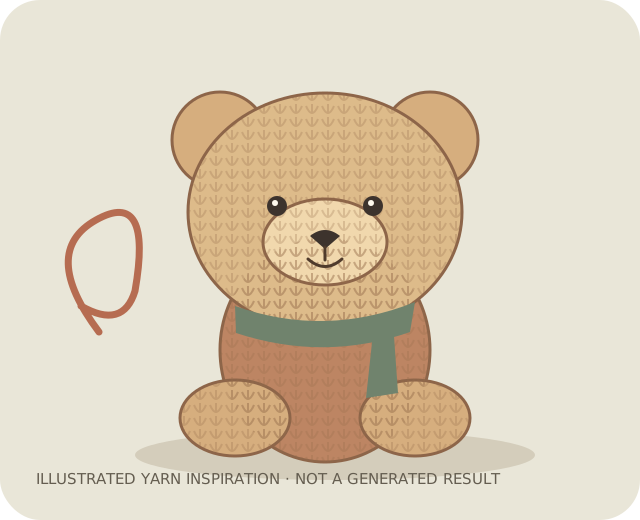
A convincing crochet effect translates skin, fur and fabric into stitched surfaces while keeping the subject recognizable. Look for consistent stitch scale, soft fiber edges and believable seams. A simple texture overlay usually lacks the three-dimensional shaping of an amigurumi doll.
Choose the right reference photo
Use a photo with a visible face and clear silhouette. Avoid heavy beauty filters and strong shadows that hide features. For groups, keep faces separated. Cropped hands and overlapping bodies can lead to unclear yarn shapes, so a simpler pose often gives an easier starting point.
Tune the strength of the effect
Cute Amigurumi emphasizes rounded forms; Realistic Crochet keeps more natural proportions. Start with one style, inspect the silhouette and then adjust. Reference strength and image editing controls vary by tool. Our local preview does not apply a filter or change your image.
Reimagine the person in the reference as a handmade crochet doll. Keep the short curly hair and mustard sweater; use visible cotton loops, embroidered eyes and softly rounded proportions. Full-body portrait on a warm ivory backdrop, soft window light, no plastic shine.
02 / PET
Small paws, softer stitches
Turn the reference cat into a cute amigurumi figure. Preserve its white muzzle, orange coat and striped tail. Use fine matte yarn, tidy crochet stitches and embroidered features. Seated pose, gentle studio lighting, no extra paws.
03 / COUPLE
Better together
Create exactly two handmade yarn dolls from the reference couple, standing side by side. Preserve each person’s hair and outfit separately. Use a coordinated earthy palette, visible crochet loops and delicate stitched seams. Keep both figures fully in frame.
LOOSE ENDS, TIED UP
A few things you might be wondering.
Does this website generate crochet images?
No. Loop & Loom generates English text prompts. Copy a prompt into an image tool that supports your intended workflow to create an image. No image generation API is connected here.
Are my photos uploaded or stored?
No. Your selected photo is previewed with a temporary browser object URL. This site does not upload it, save it to browser storage or send it to an API. Removing it or closing the page releases the preview.
Is the prompt generator free?
Yes. The prompt generator needs no account or payment. Any external image tool you choose may have its own limits, pricing and privacy policy.
Can this make a real crochet pattern?
No. A crochet-style picture is not a tested crochet pattern. It does not supply stitch counts, materials or construction instructions.
Does the preview apply a crochet filter?
No. The preview displays your original photo so you can refer to it while preparing a prompt.